The steps
-
Install OneShelf
Install OneShelf from the Shopify App Store.
OneShelf starts in Preview mode. It changes nothing in Shopify until you press Go live.
-
Count your shelf
Count the real item that your listings share, for example the blank white tees.
Do not copy the numbers from Shopify. Shopify counts each listing by itself, so its numbers can be wrong.
-
Make a base stock
Open OneShelf. The Setup page opens first. Click New base stock.
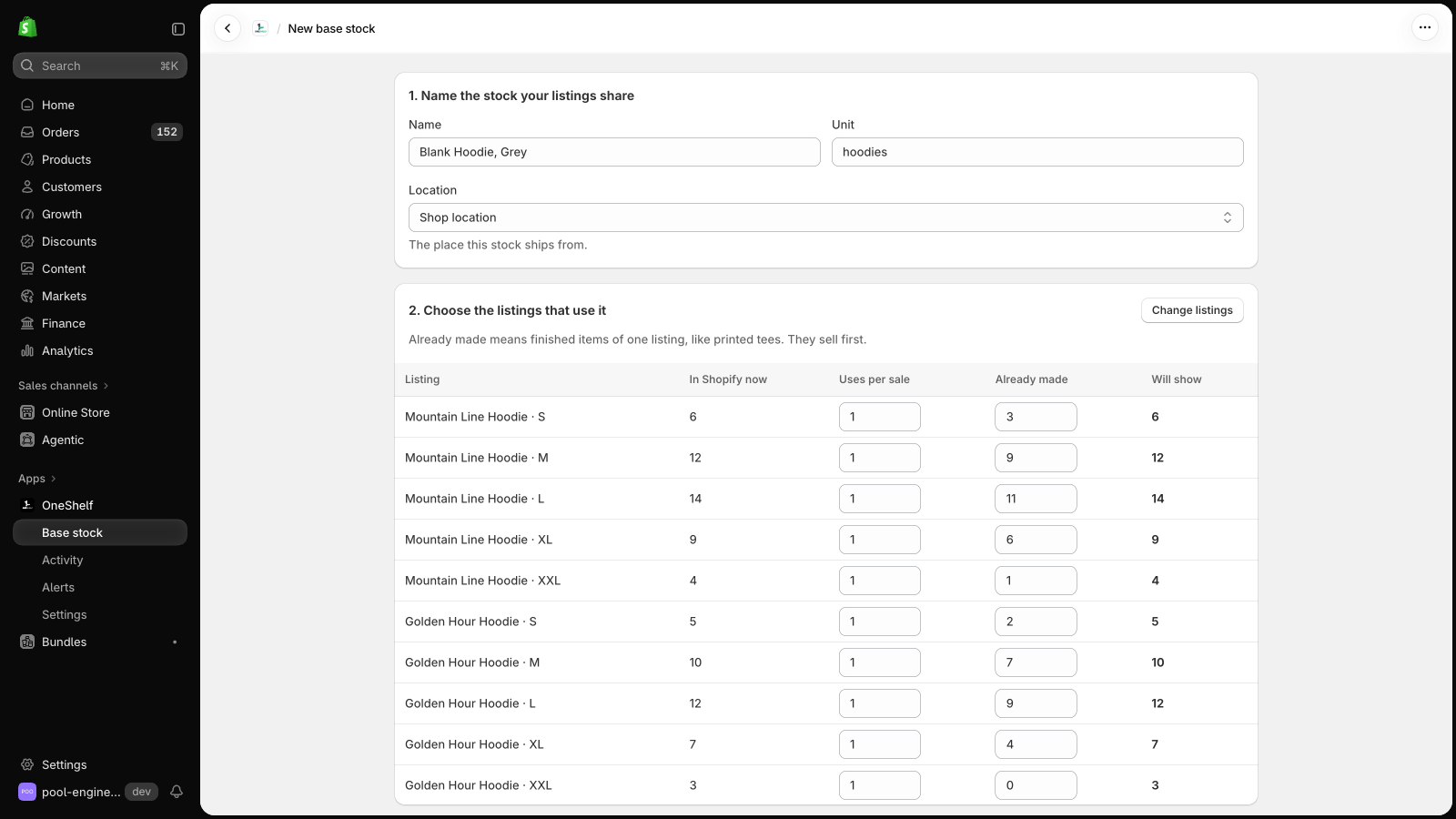
Type a name, such as "Blank tee, white". Type a unit, such as "tees". Choose the location that the stock ships from.
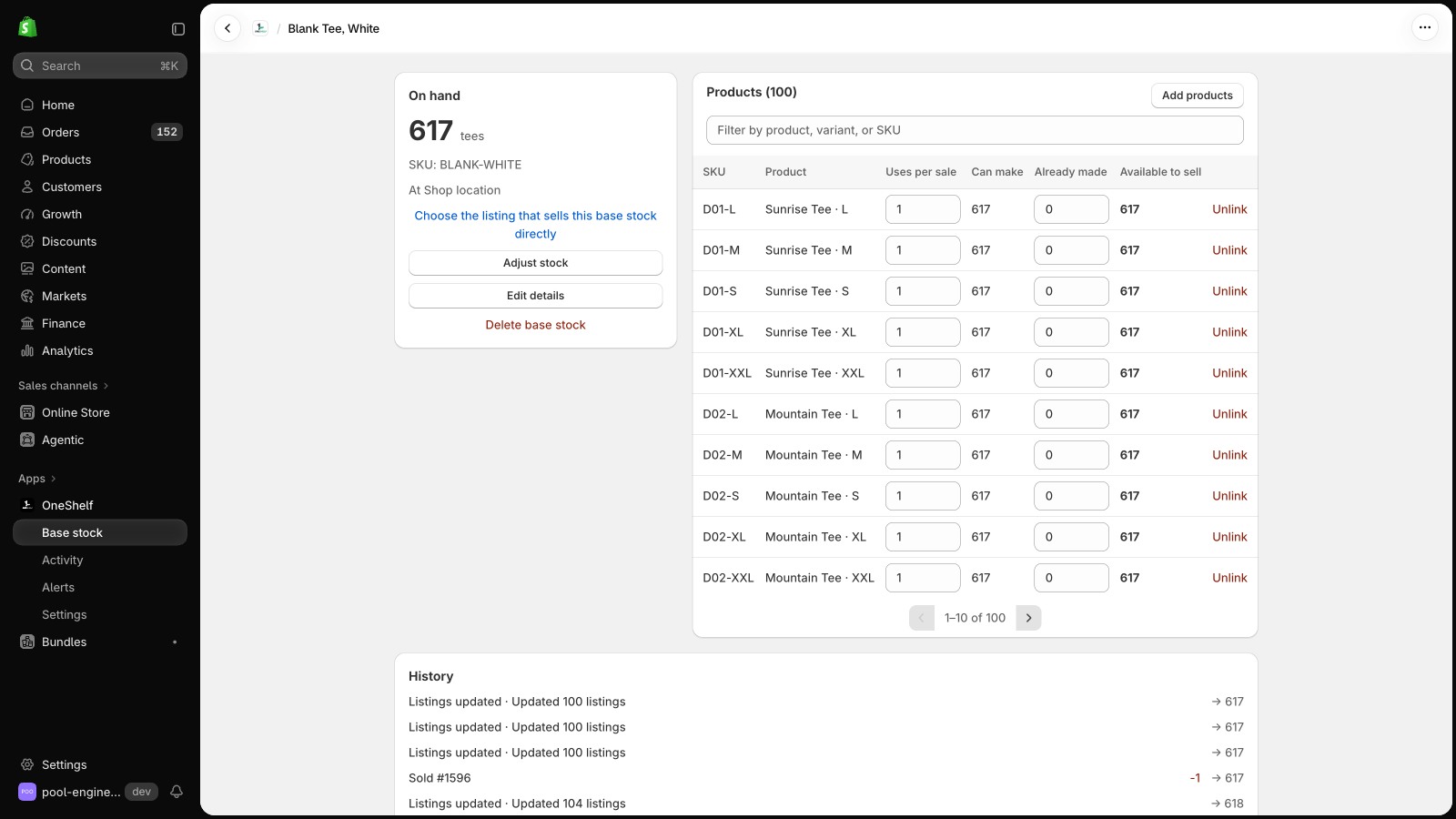
Type the count from your shelf in On hand.
-
Choose the listings that use it
Click Choose listings and select each listing that sells this item. Each variant is one listing.
For each listing, set Uses per sale. A tee uses 1. A gift pair uses 2.
If you have finished items of one listing, type them in Already made. They sell first.
The Will show column gives the quantity that each listing gets.
-
Check the numbers before you save
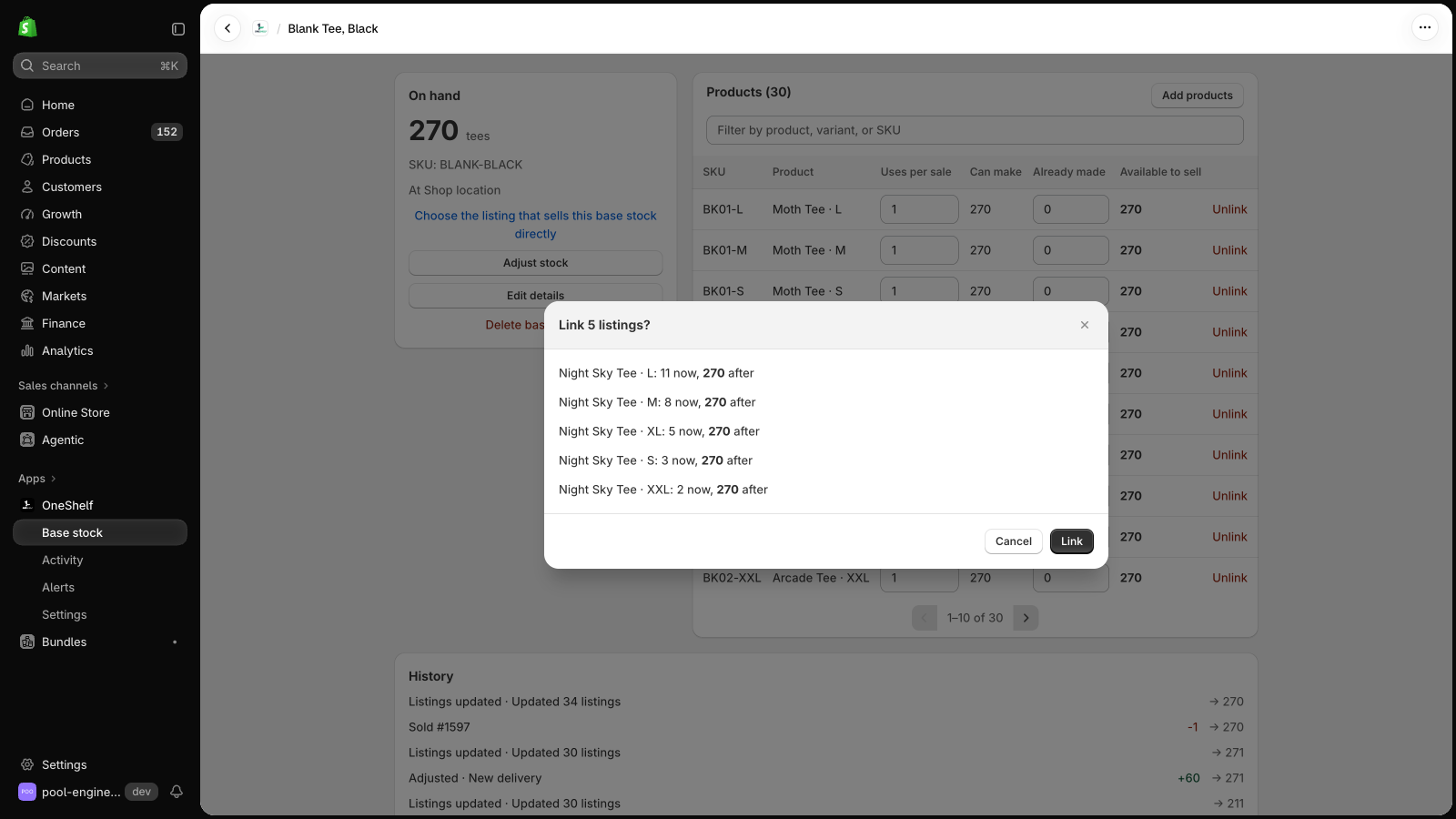
OneShelf shows each listing with its quantity now and after.
For each listing that goes down, OneShelf asks if the extra units are already made. Choose Yes to keep them, or No to set the listing to the new number.
Save the base stock. In Preview mode, nothing changes in Shopify.
-
Watch a few orders in Preview mode
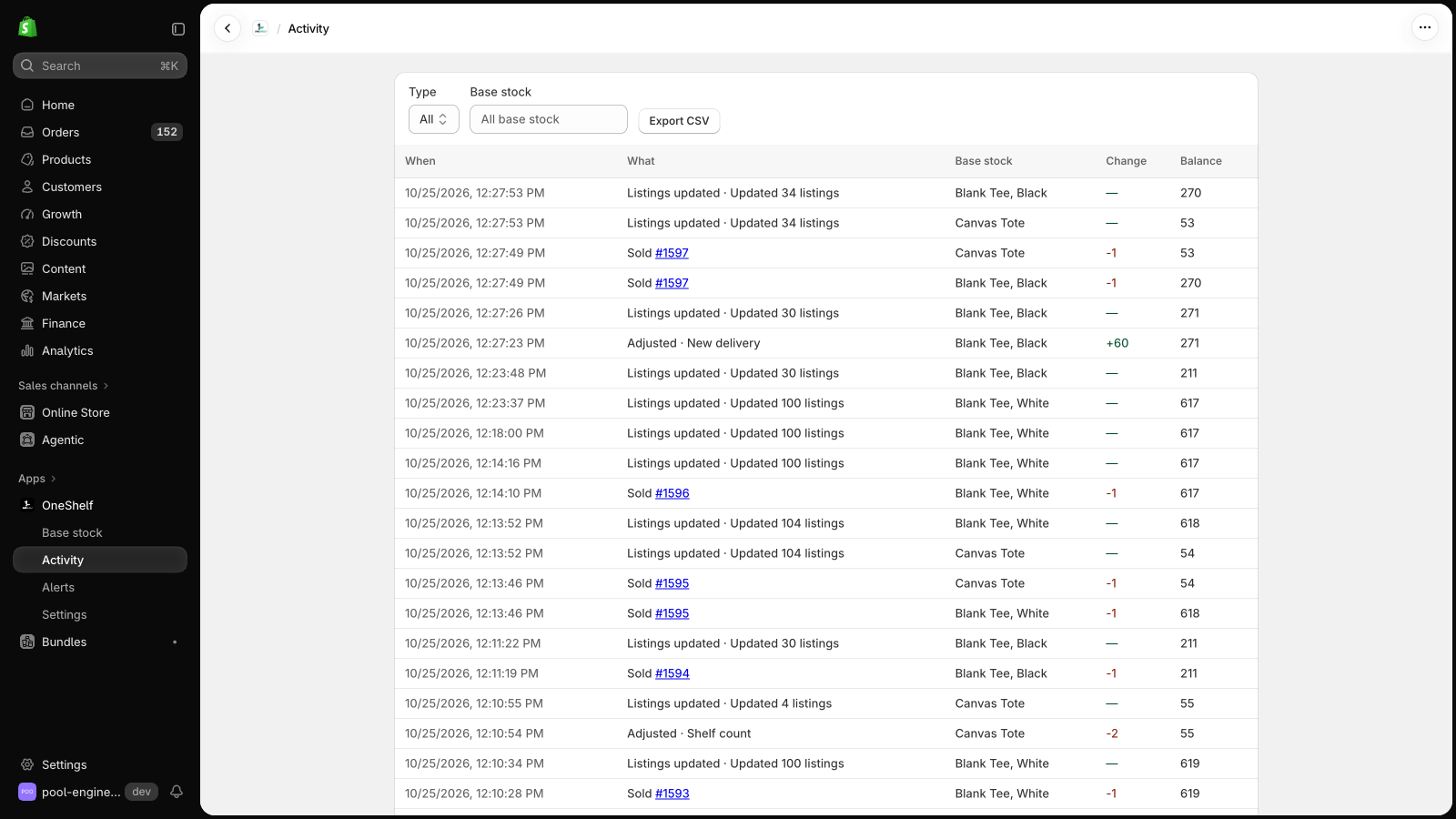
Open the Activity page after a few orders.
Each row shows what OneShelf would take from the base stock, and which listings it would update.
-
Turn off other stock sync apps
Only one app should set the stock of a listing.
If another app sets your stock, such as a warehouse or sync app, turn off its stock sync for the listings that you link.
-
Go live
Open Settings in OneShelf and click Go live.
Before you confirm, OneShelf shows each listing that will change.
Select Also turn on the checkout rule, if you want to stop a cart that needs more base stock than you have.
From now on, each sale lowers the base stock and every listing that uses it.